
JHU is enabling Canvas Multi-Factor Authentication (MFA) for all local Canvas guest accounts, which are accounts that login to canvas.jhu.edu through the Guest login portal and use a personal email and password to authenticate into Canvas.
How to Set Up Canvas MFA
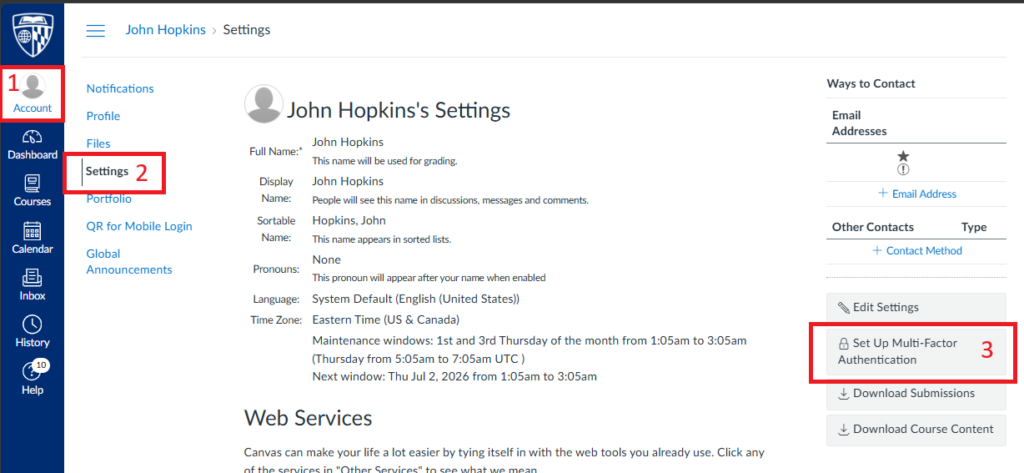
- Click on your profile image in the Global Navigation menu.
- Select “Settings” from the menu tray that opens.
- Click “Set up Multi-Factor Authentication” along the right-hand side.
Verifying Your Identity
When you access the set up screen either from your account settings or upon logging in, you will see the screen below. All subsequent logins will prompt you to verify your identity using any of the methods you previously set up.
Via Authenticator app:
Note: While you can use any authenticator app that supports Time-based One Time Passwords (TOTP), JHU recommends the Microsoft Authenticator app.
- Scan the QR code using your chosen authenticator app.
- After scanning the QR code, you are provided with a verification code. Enter that code in the text box under the QR code.
- You can optionally check the “Remember this computer” box on a trusted computer. This will be valid for 30 days.
- Make sure the code is correct and click “Verify” when you are ready.

Using Canvas MFA at Login
Once you have Canvas MFA set up, you will be prompted to verify your identity each time you login. If you chose to “Remember this computer” during set up, you may not be prompted again on the same computer, but you will be prompted on logins from any new computers.
You will retrieve a verification code from whichever method you chose at set up. For authenticator apps, you will open your app on your phone to retrieve the code.
- Login to canvas.jhu.edu through the Guest login portal.
- Enter your Email and Password.
- This time you will be prompted to also enter the Multi-Factor Authentication code.
- Once you have retrieved a code, enter that code under the Verification Code.
- You can optionally check the “Remember me” box on a trusted computer. This will be valid for 30 days.
- Make sure the code is correct and click “Verify” when you are ready. This will complete your login, and you will be taken to your Canvas dashboard.


View/Edit Your Canvas MFA Settings
After initial set up, you can access your Canvas MFA Settings through your account settings.
Under account settings, you will see the MFA configuration settings. The edit options are:
- “Reconfigure” to modify your settings.
- “Disable” to remove Canvas MFA.